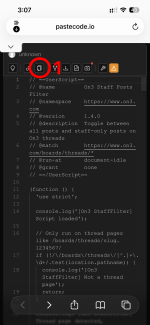
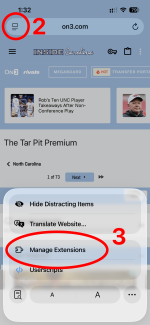
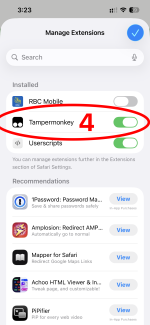
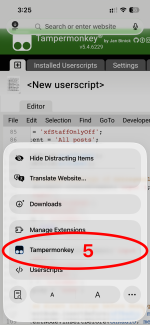
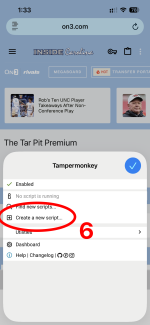
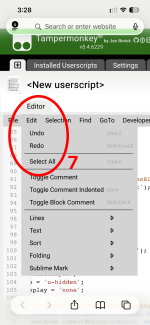
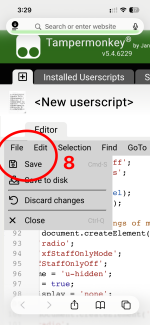
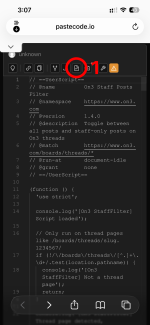
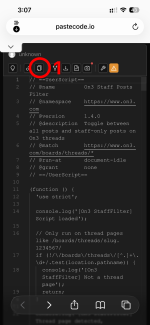
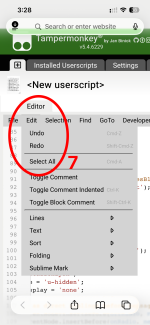
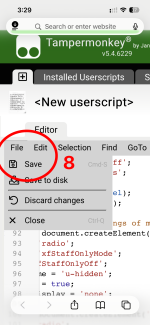
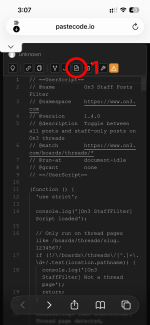
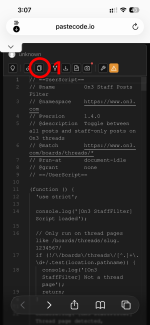
I have been reluctant to take this step to provide a way to sort by staff posts, but I don't think a server side solution I have suggested is going to be implemented anytime soon. I have been hesitant because there are so many different ways to view this forum vis a vis, computer/phones/ operating system/ browser etc. Also this will involve a little work on the side of the users to implement the function, but if you are willing to do it - I can provide you a functioning sort by staff function. I know that has been an important request by many of you, so I am willing to provide the instruction to get this feature working for you in the limited ways we can. Right now I have instructions for computer web browsers and Safari in iPhone. I don't have an an android phone to test on, but will provide AI summary on the steps to take. This will not work in the IC App.
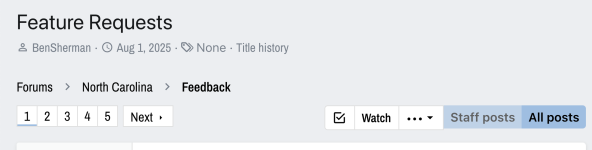
What we will be doing is adding what is called an extension to your web browser, that will allow use to run a script I wrote to change the appearance of an Inside Carolina Thread. What this script will do is add two buttons to the top page of every thread - Staff Posts and All Posts - these act as a toggle for every thread on the site. You click the Staff posts button and all posts my regular users should be hidden. You can then navigate the pages of a thread only seeing the posts by staff. When you leave the thread it reverts back to All Posts. You can of course click on the All Posts button to once again show normal poster posts again while perusing the thread.
The extension we will be using is called TamperMonkey, which is a long established browser plugin that allows people to customize how they view a webpage. It is easily removable if you no longer want it installed, and is a trusted extension for all the major browsers. I am still working out the best process for phones. I will update this thread with instructions when I streamline it.
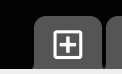
Step 1: Go to this link: https://www.tampermonkey.net it should autodetect the browser you are using and automatically serve you up the correct version to download. The download links will look like this:
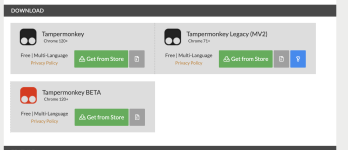
I post the image because the tampermonkey site that has some banner ads that can look like install buttons, but these lead to other software. You want to click the buttons that looks like the above image, ideally you would want the normal versions, not the BETA ones.
Tampermonkey is free for Chrome, Firefox and Edge. It looks like in Safari, it has to be purchased via the Mac App store for $3.99. I don't know why the Safari version has a fee. I bought it on my mac, and my iPhone had access as well. I don't love people having to purchase it on Safari, but not sure what else I can do to get around it.
So click the green button and it will take you to the proper place to install it; follow through with any subsequent install clicks on popup windows you need and I will go over the configuration process in the next post.
What we will be doing is adding what is called an extension to your web browser, that will allow use to run a script I wrote to change the appearance of an Inside Carolina Thread. What this script will do is add two buttons to the top page of every thread - Staff Posts and All Posts - these act as a toggle for every thread on the site. You click the Staff posts button and all posts my regular users should be hidden. You can then navigate the pages of a thread only seeing the posts by staff. When you leave the thread it reverts back to All Posts. You can of course click on the All Posts button to once again show normal poster posts again while perusing the thread.
The extension we will be using is called TamperMonkey, which is a long established browser plugin that allows people to customize how they view a webpage. It is easily removable if you no longer want it installed, and is a trusted extension for all the major browsers. I am still working out the best process for phones. I will update this thread with instructions when I streamline it.
Step 1: Go to this link: https://www.tampermonkey.net it should autodetect the browser you are using and automatically serve you up the correct version to download. The download links will look like this:
I post the image because the tampermonkey site that has some banner ads that can look like install buttons, but these lead to other software. You want to click the buttons that looks like the above image, ideally you would want the normal versions, not the BETA ones.
Tampermonkey is free for Chrome, Firefox and Edge. It looks like in Safari, it has to be purchased via the Mac App store for $3.99. I don't know why the Safari version has a fee. I bought it on my mac, and my iPhone had access as well. I don't love people having to purchase it on Safari, but not sure what else I can do to get around it.
So click the green button and it will take you to the proper place to install it; follow through with any subsequent install clicks on popup windows you need and I will go over the configuration process in the next post.
Last edited: